How to Convert Web Pages to PDF While Preserving Formatting
Introduction
Converting a web page to a PDF may appear straightforward at first glance. Most browsers offer a built-in "Print to PDF" option, giving the impression that the task is simple.
In practice, the result is often disappointing.
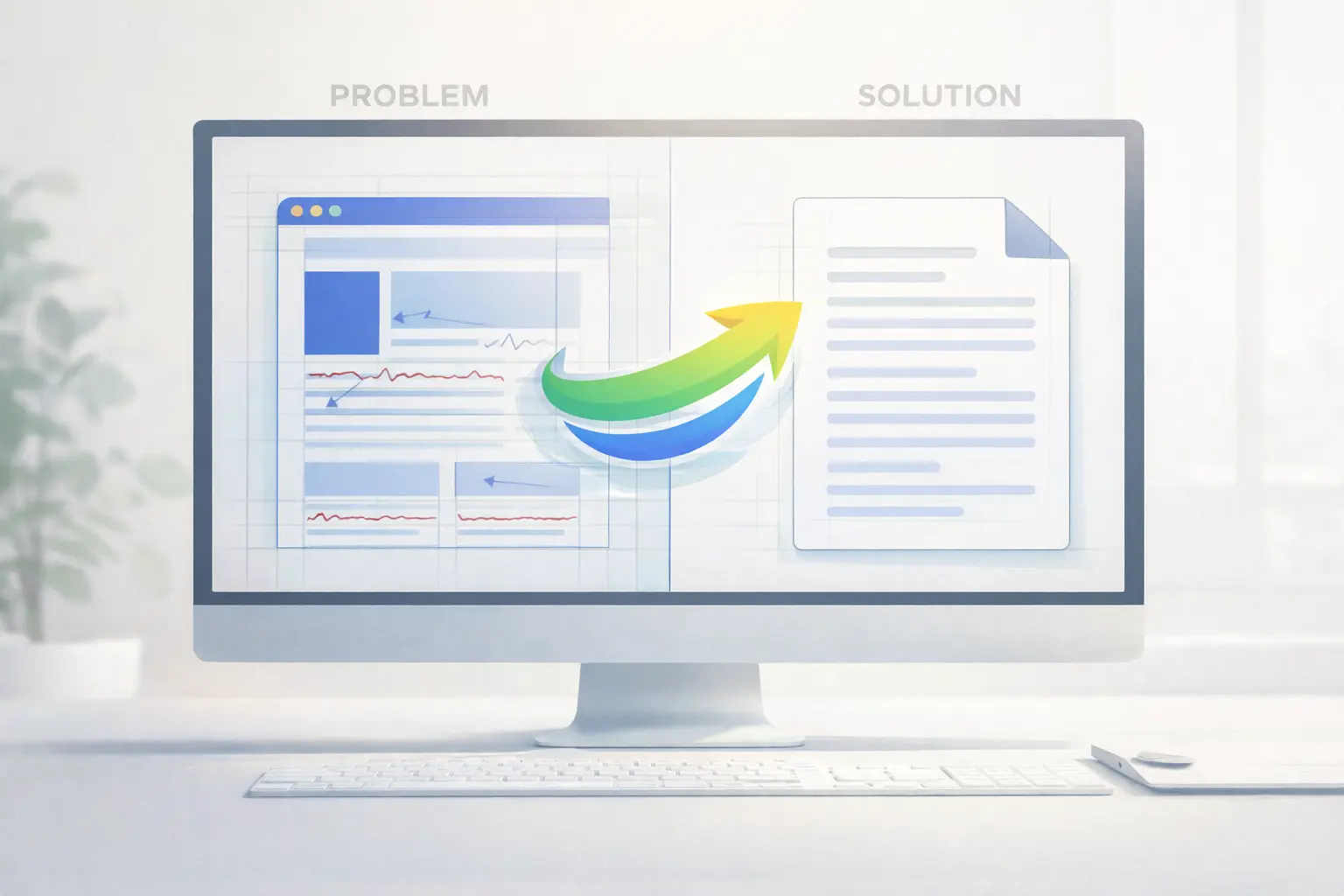
Broken layouts, missing images, shifted text, overlapping sections, and truncated content are common issues. What looks clean and professional in a browser frequently becomes unreadable once exported as a PDF.
For professionals, this is more than a minor inconvenience. When archiving reports, saving invoices, documenting dashboards, or preserving research content, retaining as much of the source structure and visual presentation as possible is important.
This guide explains why formatting is often lost during web-to-PDF conversion, what makes modern websites difficult to capture, and how to preserve as much formatting as possible. Results vary by page, renderer, and conversion settings.
Why Web-to-PDF Conversion Is More Complex Than It Seems
The web has evolved significantly over the past decade. Most modern websites are no longer static HTML pages. Instead, they rely on advanced front-end technologies designed for dynamic, responsive, and interactive experiences.
Several factors make accurate conversion difficult.
Complex CSS Layouts
Modern websites use Flexbox, CSS Grid, animations, layered positioning, and advanced typography rules. If a converter does not fully support these technologies, elements may shift, collapse, or overlap in the final document.
Responsive Design Logic
Websites adapt their layout based on screen size. When converted to PDF, the page may default to an unintended breakpoint, producing a layout that was never meant to be printed or archived.
JavaScript-Driven Content
Many pages load content asynchronously. Charts, tables, dashboards, and even text blocks may not exist at the moment conversion begins. If the tool captures the page too early, entire sections may be missing.
Lazy-Loaded Images and Fonts
Images and custom fonts are often loaded only when they appear on screen. If the page is captured before scrolling or rendering finishes, these assets may never be included.
Because of these challenges, basic converters and browser print functions frequently fail. They capture pages too early, ignore modern styling rules, or rely on outdated rendering engines.
Common Problems Found in Poor PDF Conversions
When formatting is not preserved, the resulting PDF often suffers from:
These issues are especially problematic in professional contexts, where documents must be accurate, clear, and presentable.
Best Practices for Converting Web Pages to PDF Accurately
To produce a clean and faithful PDF, several best practices should be followed.
1. Allow the Page to Fully Render
Always wait until the page has completely loaded. This includes JavaScript-driven content, animations, charts, and lazy-loaded elements.
2. Ensure All Stylesheets Are Applied
The converter should attempt to load the CSS rules needed for the intended layout. Missing, unsupported, or partially loaded stylesheets can cause broken layouts.
3. Remove or Ignore Print-Unfriendly Elements
Pop-ups, cookie banners, ads, and floating widgets can interfere with the final layout. Reliable tools automatically exclude or neutralize these elements.
4. Use True HTML-to-PDF Rendering
Avoid tools that rely on screenshots. Screenshot-based PDFs may look acceptable at first but lack text selection, searchability, accessibility, and proper scaling.
5. Match the Correct Viewport Size
The PDF should reflect the intended desktop or mobile layout, not an arbitrary screen size that distorts the design.
Why Dedicated Conversion Tools Matter
Not all PDF converters are built the same. Tools designed specifically for HTML-to-PDF rendering use browser-grade engines that accurately interpret modern web technologies.
A reliable converter will:
For professionals and teams, this difference is significant. A well-converted PDF saves time, avoids rework, and maintains credibility.
That's why we created Page2Doc — to make accurate web-to-PDF conversion simple, reliable, and consistent.
Professional Use Cases Where Accuracy Is Critical
High-quality web-to-PDF conversion is essential across many industries.
Business and Finance
Reports, invoices, receipts, dashboards, and internal documentation
Legal and Compliance
Contracts, policy pages, regulatory records, and evidence archiving
Research and Education
Articles, online papers, data sources, and reference material
Product and Engineering Teams
Documentation snapshots, changelogs, and technical references
In these contexts, even small formatting errors can lead to misunderstandings, compliance issues, or loss of trust.
Conclusion
Converting web pages to PDF accurately requires more than a simple "print" command. Modern websites are complex, dynamic, and built with technologies that basic tools cannot fully handle.
To preserve as much formatting, structure, and visual fidelity as possible, choose a converter that waits for rendering and supports the page's CSS. Review the output because results vary across pages and renderers.
Page2Doc was designed with these principles in mind. It handles conversion steps behind the scenes, but you should review important documents for layout, missing assets, and formatting differences.