Why Word Found Unreadable Content When Converting Web Pages to DOCX
Introduction
If you've ever converted a web page to Word and been greeted by this message:
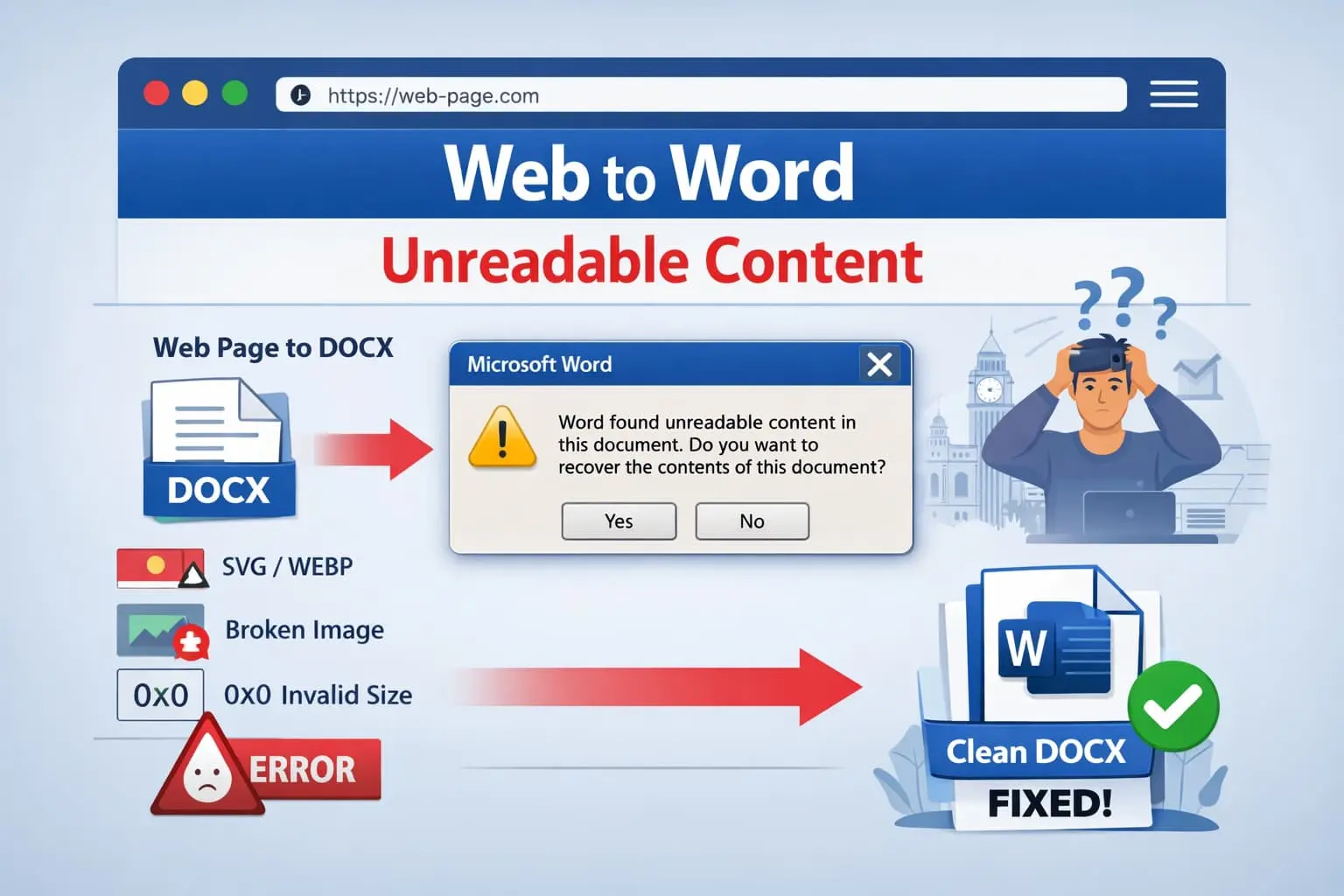
"Word found unreadable content in this document. Do you want to recover the contents?"
you're not alone.
This issue affects:
The frustrating part? The document looks fine in Google Docs — yet Microsoft Word refuses it.
This article explains the real technical reason behind DOCX unreadability, why most converters fail, and how to fix the problem at an engineering-grade level, not with hacks.
What "Unreadable Content" Actually Means in Word
Microsoft Word is not complaining about your text.
It is telling you that the OpenXML structure of the DOCX file is invalid.
A .docx file is:
If one single element violates the specification, Word flags the entire document as corrupted.
Why Web-to-Word Conversion Is Especially Fragile
Web pages were never designed to become Word documents.
They contain:
Word, on the other hand, expects:
This mismatch is where everything breaks.
The #1 Root Cause: Images, Not Text
In over 90% of real-world cases, images are the reason Word reports unreadable content.
Common fatal issues include:
1. Mismatched image MIME types
Example: file name is image1.webp, actual content is PNG, declared relationship is image/jpeg. Word rejects the file.
2. Invalid image dimensions
If Word encounters zero or negative dimension values, the document is considered corrupted.
3. Unsupported formats
Microsoft Word does not support: SVG, WebP, or AVIF. Even partial support or fallback attempts can corrupt the file.
4. Broken OpenXML relationships
If document.xml references an image relationship ID that does not exist in document.xml.rels, Word fails immediately.
Why HTML-to-DOCX Libraries Often Fail
Most libraries try to automate too much.
Typical behavior:
This works for simple pages — but fails catastrophically for:
The result: structurally invalid DOCX files.
The Engineering-Grade Fix (The Only Reliable One)
The solution is not "cleaner HTML".
The solution is full OpenXML control over images.
Golden Rule
Never let an HTML-to-DOCX converter manage images automatically.
Correct Web-to-Word Architecture
1. Fetch HTML once
2. Sanitize content (remove SVG, scripts, lazy loading)
3. Extract images
4. Download images
5. Re-encode to JPEG or PNG
6. Validate dimensions
7. Manually embed images into DOCX
Images must be:
Why This Fix Works 100% of the Time
Because Microsoft Word does exactly what it promises:
Once every image:
Word has no reason to show an unreadable content warning.
Best Practices for SaaS Converters
If you run a web-to-document service:
Users trust documents that open cleanly more than documents that "almost" look perfect.
Conclusion
"Word found unreadable content" is not a mystery.
It is a structural failure, almost always caused by improperly embedded images during web-to-DOCX conversion.
Once you treat Word as a strict XML validator, not a browser, the fix becomes obvious — and permanent.
Final Takeaway
If Google Docs opens your file but Word doesn't, your DOCX is not compliant — it is merely tolerated.
Fix the structure, and the problem disappears forever.
Try Page2Doc
Convert web pages to Word files that actually open. No corruption. No recovery prompts.
Page2Doc uses OpenXML-safe image handling to ensure every document passes Word's strict validation.