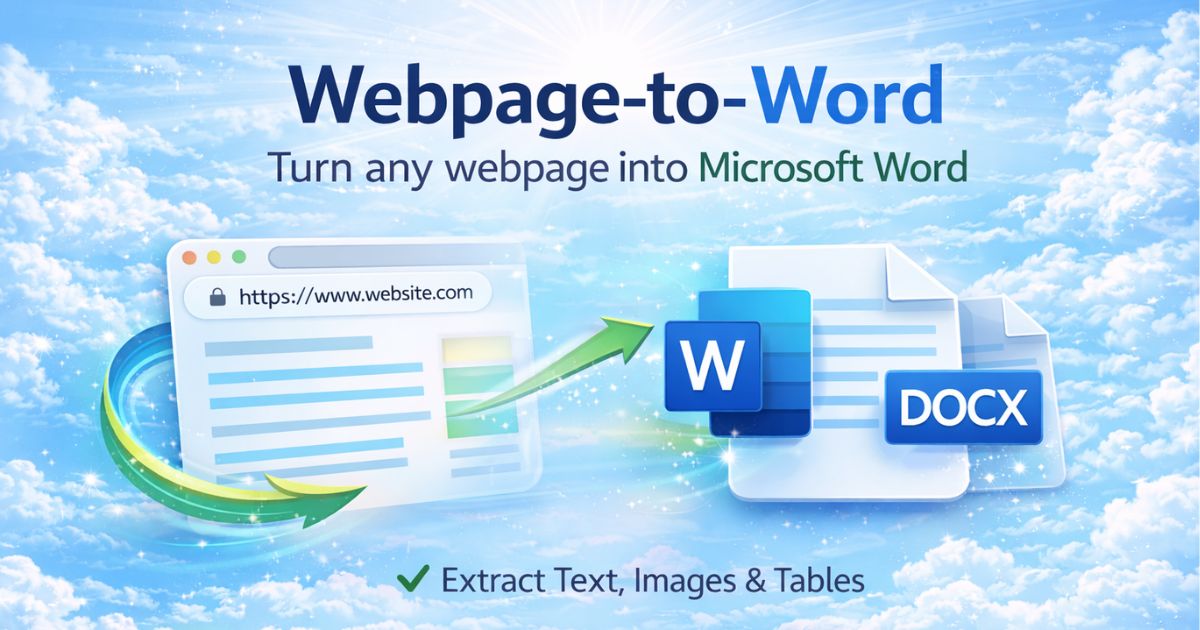
Jede Webseite in ein bearbeitbares Word-Dokument (.docx) umwandeln

    Extrahieren Sie strukturierte Inhalte von jeder Website und verwandeln Sie sie in ein vollständig bearbeitbares Microsoft Word-Dokument — saubere Formatierung, bewahrte Überschriften und keinerlei Unordnung.

    Diese Seite jetzt in Word konvertieren

    URL einfügen — ohne Anmeldung und Installation.

    Sofortige Konvertierung
    Keine Daten gespeichert

    Möchten Sie konvertieren, ohne die gelesene Seite zu verlassen?

    • Convert while you browse — no tab switching
    • One click from any page
    • No copy/paste, no manual cleanup
    • Lives in your toolbar, always one click away
    • Faster than the web app for everyday use
    convert webpage to word document

    Warum Webseiten in Word konvertieren?

    Während PDFs ideal für die Archivierung sind, sind Word-Dokumente unverzichtbar für Bearbeitung, Zusammenarbeit und professionelle Weiterverwendung. Forscher, Content-Teams, Juristen und Unternehmensteams benötigen häufig strukturierte, bearbeitbare Dokumente statt statischer Dateien.

    Page2Doc extrahiert intelligent die semantische Struktur einer Seite — Überschriften, Listen, Tabellen, Bilder — und konvertiert sie in eine korrekt formatierte .docx-Datei.

    Im Hintergrund ordnet Page2Doc jede HTML-Überschrift der entsprechenden Word-Formatvorlage zu: Aus einem <h1> wird ein echter Stil „Heading 1“, aus einem <h2> „Heading 2“ und so weiter bis <h6>. Dadurch funktionieren das Navigationsfenster, automatische Inhaltsverzeichnisse und die Gliederungsansicht von Word direkt.

    Die erzeugte .docx-Datei ist ein Standardpaket im Open-XML-Format und lässt sich im Allgemeinen in Microsoft Word, Google Docs und LibreOffice Writer öffnen. Das Ergebnis kann je nach Anwendung abweichen; Word ist gegenüber PDF die passende Wahl, wenn Sie bearbeiten, kommentieren, Änderungen nachverfolgen oder Inhalte zusammenführen möchten.

    Für diese Arbeitsabläufe wurde die Word-Konvertierung entwickelt

    Forschungsabläufe profitieren von der erhaltenen Überschriftenhierarchie: In Word können Sie direkt zu „Methodik“ oder „Ergebnisse“ springen, statt einen unstrukturierten Textblock zu durchsuchen.

    Juristische Abläufe benötigen Dokumente mit Kommentaren und Änderungsverfolgung. Eine Vorschrift, eine Zusammenfassung eines Verfahrens oder ein öffentlicher Datensatz kann direkt annotiert werden, statt ihn vorher abzutippen.

    Unternehmens- und Beratungsabläufe beginnen oft mit einer Webseite und benötigen daraus einen bearbeitbaren Entwurf für ein Angebot, ein Audit oder einen internen Bericht. Die Word-Konvertierung erspart die erneute Eingabe.

    Im Bildungsbereich können Studierende Quellen zitieren und Lehrkräfte aus mehreren Artikeln ein Lesepaket erstellen. Ein kombinierbares Dokument ist dafür hilfreicher als eine nur online lesbare Seite.

    Journalisten können eine Quellenseite als datiertes, bearbeitbares Dokument mit erhaltener Überschriftenstruktur sichern. Die Datei bleibt unabhängig davon, ob sich die Live-Seite später ändert oder verschwindet.

    Marketingteams können eine Landingpage, Produktbeschreibung oder Pressemitteilung in einen strukturierten Entwurf umwandeln. Das vermeidet die Nacharbeit an einem unübersichtlichen Kopieren-und-Einfügen-Ergebnis.

    Entwickler können die Dokumentation einer Bibliothek in Word übernehmen, um sie an ein internes Designdokument anzuhängen oder mit Personen ohne Zugriff auf die Originalseite zu teilen. Überschriften und Codeblöcke bleiben dabei erhalten.

    Häufige Fehler

    Ein häufiger Fehler ist die Erwartung einer pixelgenauen visuellen Kopie. Page2Doc extrahiert semantische Struktur — Überschriften, Tabellen und Listen — statt exakter Schriftarten, Farben und Positionen, weil diese Struktur das Ergebnis bearbeitbar macht. Warten Sie außerdem, bis die Seite vollständig geladen ist.

    Bewährte Vorgehensweise

    Als bewährte Vorgehensweise sollten Sie „Werbung und Unordnung entfernen“ bei Artikeln und Blogbeiträgen aktiviert lassen. Deaktivieren Sie die Option bei Dokumentation, deren Seitenleiste oder Inhaltsverzeichnis erhalten bleiben soll.

    So funktioniert der Konvertierungsprozess

    1. 1

      Fetch the Page

      Page2Doc requests the URL you provide using a headless browser that waits for the page's own JavaScript to finish rendering, so single-page apps and JS-heavy sites are captured fully loaded, not as a blank shell.

    2. 2

      Clean the Content

      Scripts, tracking pixels, ad containers, cookie banners, navigation menus, and sidebars are stripped before anything else happens, leaving the actual article content.

    3. 3

      Extract the Structure

      The cleaned HTML is parsed into a structured document model — headings keep their level (H1–H6), and paragraphs, lists, tables, and images are identified individually rather than captured as one flat block of text.

    4. 4

      Resolve Images

      Each image referenced in the content is fetched, resized, and re-encoded, so the final document stays a reasonable file size instead of embedding oversized originals.

    5. 5

      Generate the Word Document

      The structured document is converted into a real .docx file: HTML headings become genuine Word "Heading 1–6" styles, HTML tables become native Word tables, and images are embedded directly in the file — not linked externally.

    6. 6

      Download

      Your browser downloads the finished .docx immediately. The web app doesn't persist the source page or the generated file after your download completes.

    So konvertieren Sie eine Webseite in 3 Schritten in Word

    1

    Page2Doc Chrome-Erweiterung installieren

    Besuchen Sie den Chrome Web Store und installieren Sie die Page2Doc-Erweiterung mit einem Klick. Kein Konto oder Registrierung erforderlich.

    2

    Die gewünschte Webseite öffnen

    Navigieren Sie zu einem beliebigen Artikel, Blogbeitrag, einer Dokumentationsseite oder einem Webinhalt, den Sie als bearbeitbares Word-Dokument speichern möchten.

    3

    Auf Page2Doc klicken und Word (.docx) wählen

    Klicken Sie auf das Page2Doc-Symbol in Ihrer Symbolleiste, wählen Sie Word/DOCX als Ausgabeformat und laden Sie Ihr vollständig bearbeitbares Dokument mit bewahrten Überschriften, Tabellen und Bildern herunter.

    Was unterscheidet Page2Doc?

    Editable .docx — not a locked, flattened copy
    Real Word heading styles (Heading 1–6), not bold text
    HTML tables become native, editable Word tables
    Images are resized and embedded, not linked or missing
    Ads, navigation, and clutter removed automatically
    Seconds, not minutes of manual cleanup
    No login required for the free tier; URL fetched fresh, not from your session
    Works from any device — no desktop software required

    Ideale Anwendungsfälle

    Entwurf wissenschaftlicher Arbeiten
    Wiederverwendung von Inhalten
    Vorbereitung rechtlicher Unterlagen
    Archivierung von Firmenwissen
    Bearbeitung technischer Anleitungen
    Zusammenstellung aus Web-Quellen

    Page2Doc vs. Kopieren & Einfügen vs. Online-Konverter

    FunktionPage2DocKopieren & EinfügenOnline-Konverter
    Saubere Überschriftenstruktur
    Bewahrt Tabellen
    Entfernt Werbung & Unordnung
    Lokale Verarbeitung (Datenschutz)
    Ein-Klick-Konvertierung
    Kein Datei-Upload erforderlich
    Bearbeitbare .docx-Ausgabe
    Einheitliche Formatierung

    Web-App oder Chrome-Erweiterung — was sollten Sie verwenden?

    Web App

    Best when you already have the URL in hand — pasting a link into a batch of pages, converting a page you found in someone else's message, or working from a device where you can't install a browser extension.

    Chrome Extension

    Best while you're already reading — one click from the toolbar converts the exact page you're looking at, with no tab-switching, no copying a URL, and no leaving the page you're on.

    The two aren't competing tools — they cover different moments. The web app is for converting pages you're sent or need to process in bulk; the extension is for converting pages you're already browsing. Most regular users end up using both.

    Häufig gestellte Fragen

    Dokumentation

    Quick Start

    1. Paste a URL into the converter above, or install the Chrome extension for one-click conversion from any page you're browsing.
    2. Choose Word (.docx) as the output format — it's selected by default on this page.
    3. Click Convert. Your browser downloads the .docx file automatically once conversion finishes, typically within a few seconds.

    Best Practices

    • Keep "Remove Ads & Clutter" on for articles and blog posts; turn it off for documentation pages where the sidebar or table of contents matters.
    • Let the page finish loading in your own browser before converting — the extension captures exactly what's already rendered.
    • For very long pages, expect a slightly longer conversion time — image resolution is the main variable.

    Limitations

    • Content behind a login wall isn't reachable from the web app — use the Chrome extension instead, since it works from your already-authenticated tab.
    • Content inside an <iframe> (embedded widgets, some embedded PDFs) is not followed, for the same reason browsers restrict cross-frame access.
    • Visual design (exact fonts, colors, pixel layout) is not preserved — only semantic structure is, which is what makes the result editable.

    Troubleshooting

    The download didn't start.
    Check that your browser isn't blocking the download or pop-up; try the request again — a transient network timeout is the most common cause.
    An image or table is missing from the output.
    The source may load that content via JavaScript after the initial page load, or it may sit inside an iframe. Try the Chrome extension, which converts the page as your browser has already rendered it.
    I hit the daily free limit.
    Free conversions reset daily. Upgrading removes the daily cap — the upgrade prompt shows your reset time and a direct link.

    Supported Websites

    Page2Doc works on any publicly accessible webpage — news articles, blog posts, documentation sites, Wikipedia, and JavaScript-rendered single-page apps. Pages that require a login are only reachable via the Chrome extension, not the web app.

    Output Quality

    Output quality depends on how well-structured the source page is: pages that use real HTML headings, lists, and tables convert cleanly; pages built entirely from styled <div> soup (no semantic HTML) convert with less structure, since there's less structure to extract in the first place.

    API Example

    Every format — PDF, Word, and Excel — uses the same authenticated conversion API, so switching a request from PDF to Word is a one-word change:

    POST https://page2doc.com/api/chatgpt/convert
    Authorization: Bearer YOUR_API_KEY
    Content-Type: application/json
    
    {
      "url": "https://example.com/article",
      "format": "docx"
    }
    
    # Response (202 Accepted — poll the job until it completes):
    {
      "jobId": "job_abc123",
      "status": "queued",
      "estimatedTime": 15
    }
    View full API reference →

    Verwandte Konvertierungstools

    Continue Your Workflow

    What most people do next with this result.

    Beliebte Word-Konvertierungstools

    Gezielte Tools für bestimmte Inhalte und Anwendungsfälle

    Jetzt sofort in Word konvertieren

    Zu Chrome hinzufügen — Kostenlos